If Yacine TV works for some people but refuses to open properly on your smart TV, the issue is usually not the app itself. In many cases, the problem comes from the old version still being installed, or from launching the app the wrong way after installation.
The fix is simple. Remove the previous version completely, reinstall the 2026 Yacine TV build without a separate player, then open it through the file manager if the normal shortcut gives a network error.
This method is especially useful for smart TV screens where Yacine TV may install successfully but still show messages like no network, no internet, or no connection when opened from the home screen.
Table of Contents
- 🧹 Start by removing the old Yacine TV version
- ⬇️ Install Yacine TV 2026 through Downloader
- ⚠️ What the update message really means
- 🏠 Why the app may fail from the home screen
- 📂 Open Yacine TV through File Manager
- 🔍 Why this method works better
- ✅ Quick installation checklist
- ❓ FAQ
🧹 Start by removing the old Yacine TV version
The first step matters more than people think. If you skip it, the installation can still complete, but you may run into update prompts or launch problems later.
Here is the clean way to do it:
- Press the Settings button on the remote. It is usually the gear icon.
- Open All Settings.
- Go to Apps.
- Find Yacine TV in the installed apps list.
- Select it and choose Remove.
- Confirm the deletion.
Once the app is removed, you are ready for a fresh installation. This clean start is what prevents many of the usual errors.
⬇️ Install Yacine TV 2026 through Downloader
After deleting the old version, go back to the home screen and open the Downloader app.
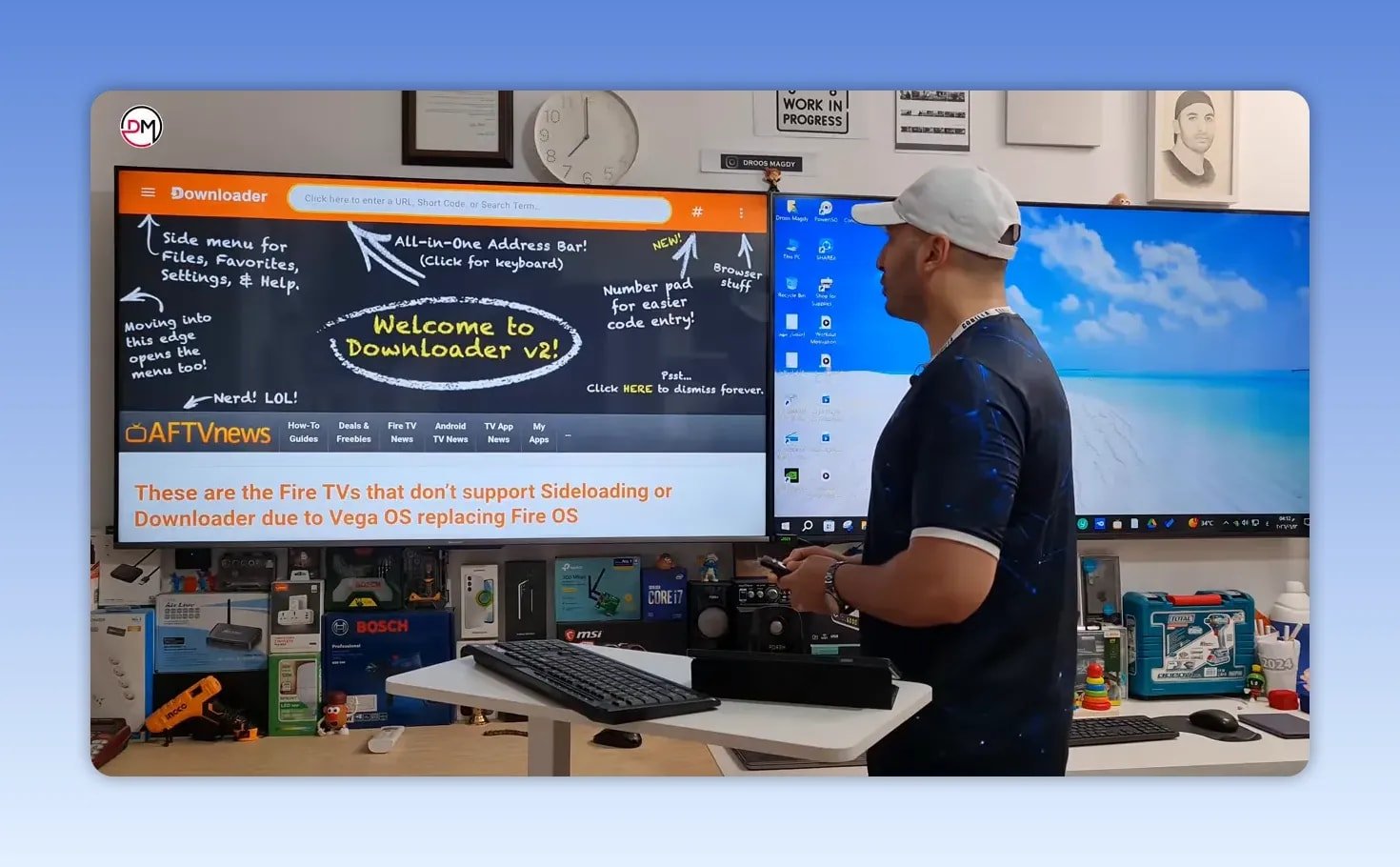
Inside Downloader, move to the code entry section and enter this code:
- 1279960
After typing the code, confirm it using the check mark or the Enter button on the on screen keyboard.
You may briefly land on a page that gives you two possible ways forward:
- Wait a few seconds for the page to continue automatically
- Or select the visible download link directly for a faster result
When the download option appears, choose Download. If a second confirmation appears, choose the option that continues the download anyway.
The app size is around 10 MB, so the download time depends on your internet speed.
⚠️ What the update message really means
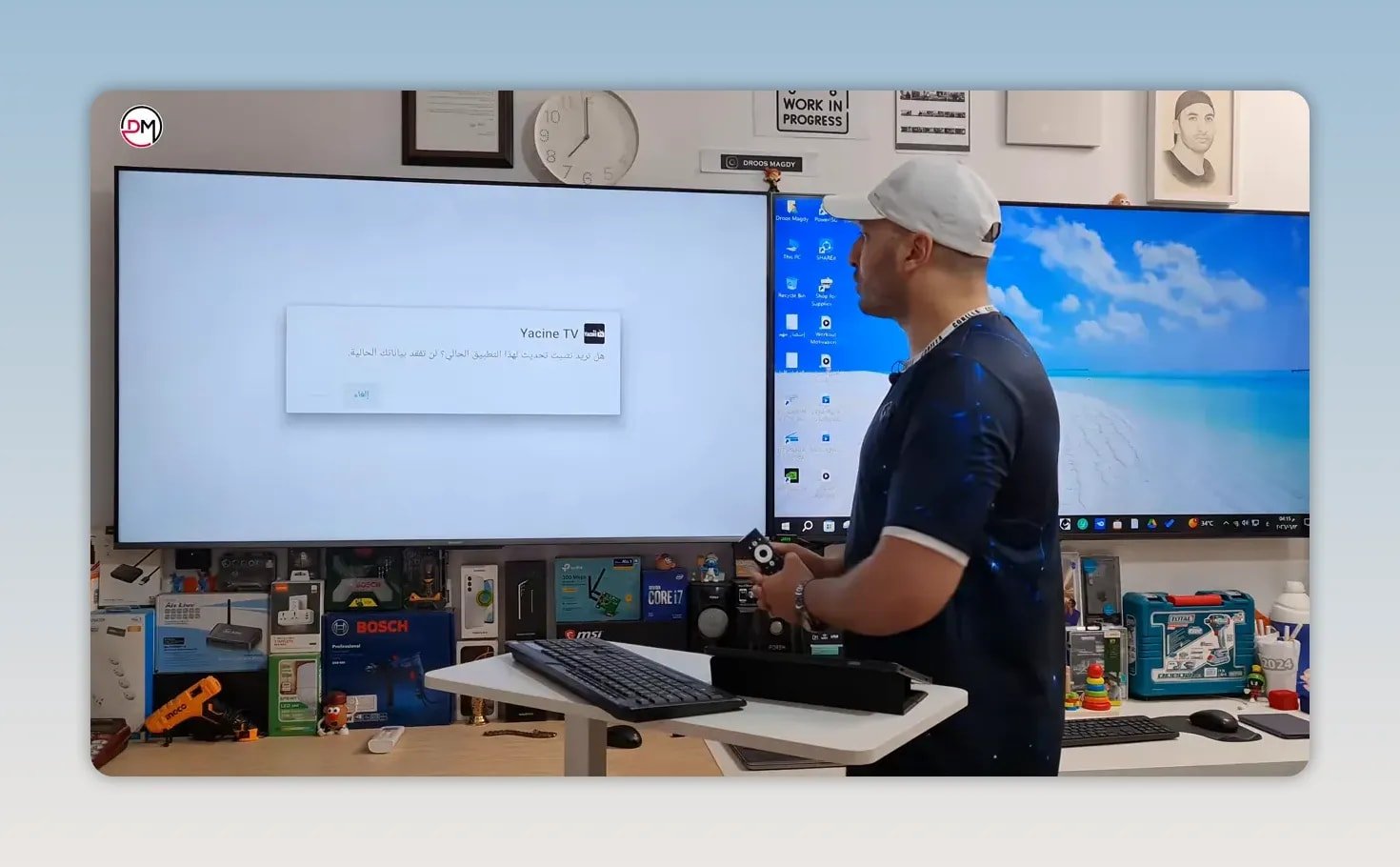
During installation, a message may appear asking whether you want to install an update for the current app.
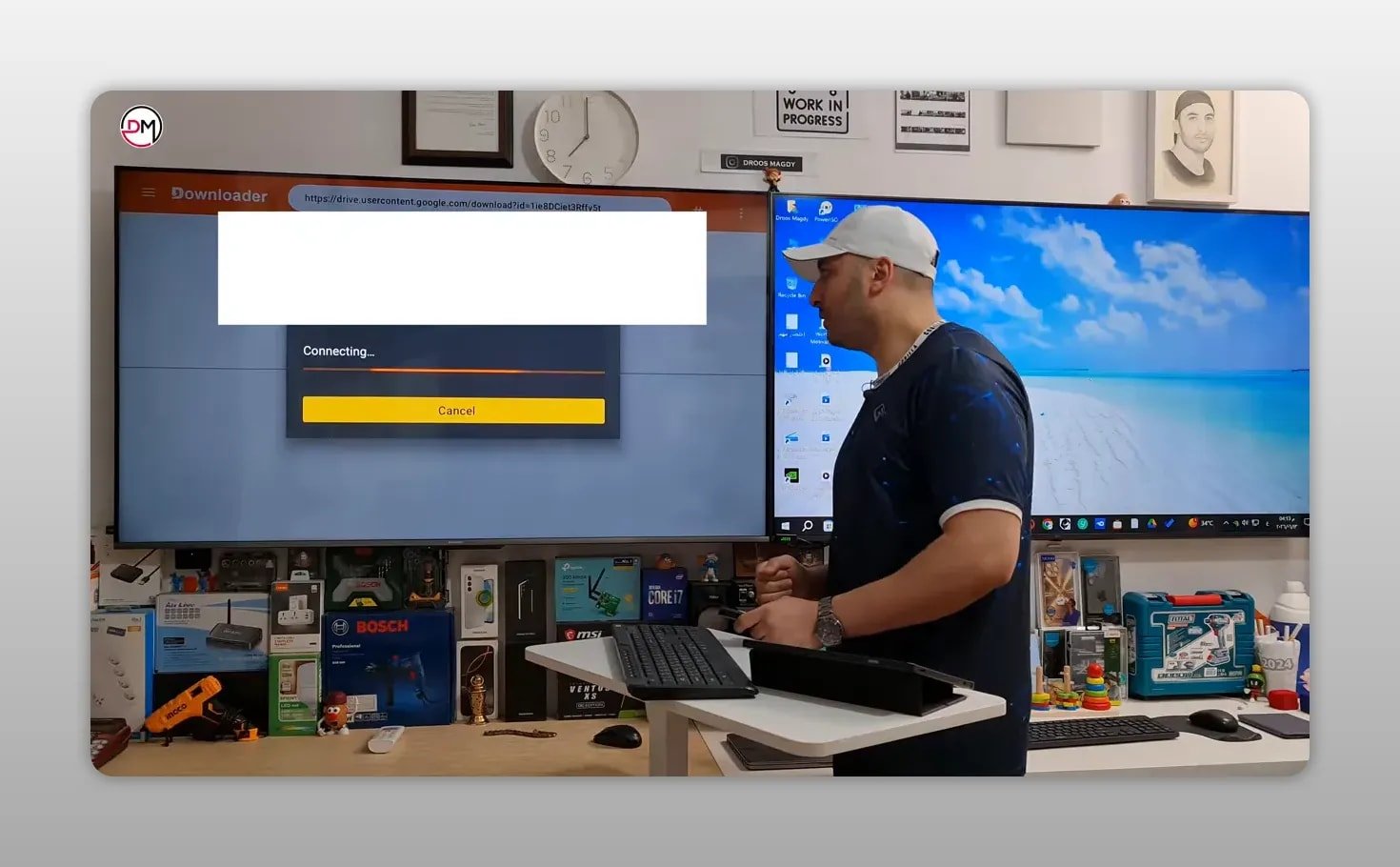
If that message shows up, it usually means the older version of Yacine TV is still present on the TV.
That is not a disaster. You can still press Install and complete the process. But if you want the cleanest possible result, it is better to delete the previous version first, then repeat the installation.
If the system instead asks whether you want to install this application normally, that is a sign the old copy has already been removed.
🏠 Why the app may fail from the home screen
After installation finishes, return to the home screen. Yacine TV should now appear among your installed apps.
At this point, many people make the same mistake. They open Yacine TV directly from the main screen, then get a message saying there is no network, no internet, or no connection.
If that happens, do not assume the installation failed.
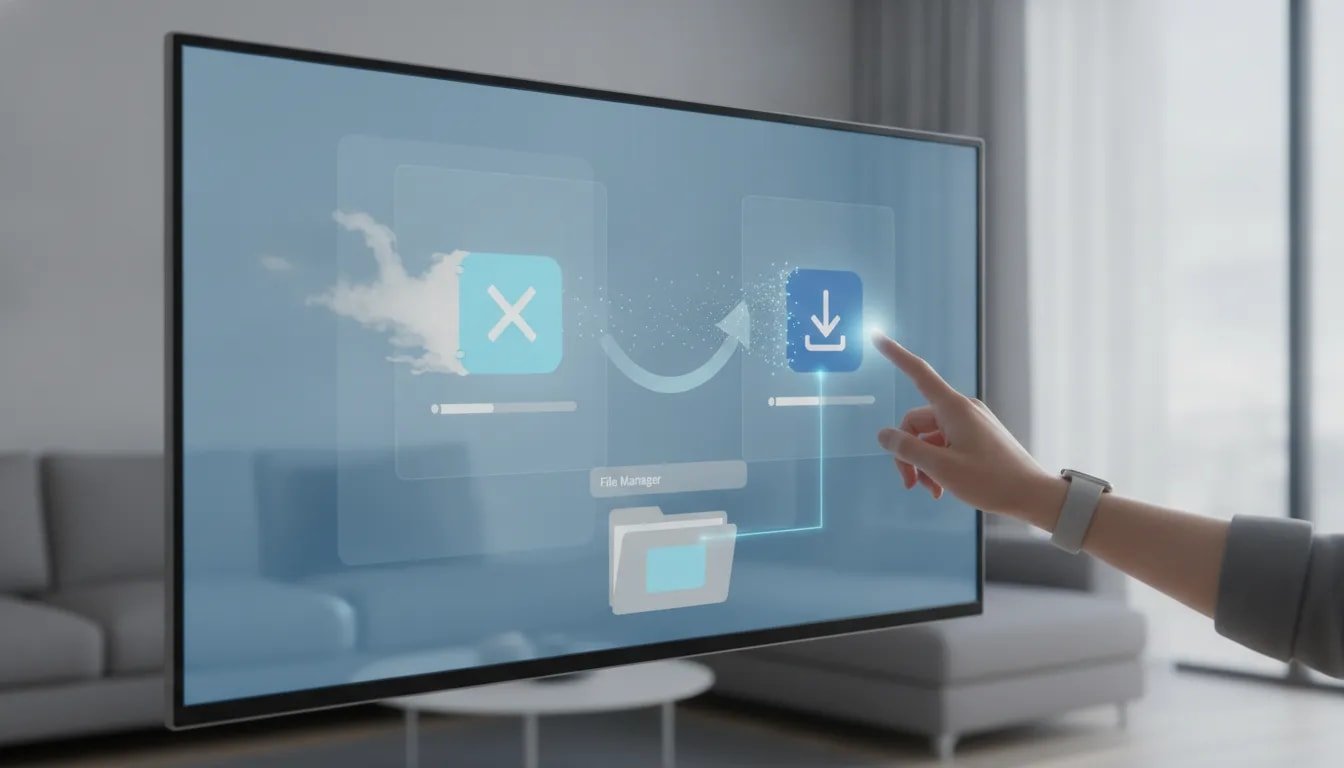
The better workaround is to launch the app through the File Manager or Apps Manager instead of the standard shortcut.
📂 Open Yacine TV through File Manager
This is the step that solves the problem for many TVs.
Instead of opening Yacine TV from the home page, do this:
- Press the Home button on the remote.
- Open File Manager.
- Go to Applications.
- Find Yacine TV in the installed apps list.
- Select it.
- Choose Open.
That method should open the app normally without the connection error that sometimes appears from the regular shortcut.
🔍 Why this method works better
Some smart TV systems handle sideloaded apps a little differently from apps installed through the official store. The app can be installed correctly, yet the main shortcut may not launch it in the most reliable way.
Opening it through File Manager or the installed applications section bypasses that issue on certain screens.
So if Yacine TV appears installed but acts like it has no internet, the problem may be with the launch path, not your actual network connection.
✅ Quick installation checklist
- Delete the old Yacine TV version first
- Open Downloader
- Enter code 1279960
- Download and install the app
- If an update prompt appears, the old app is probably still installed
- After installation, do not rely on the home screen shortcut if it shows a connection error
- Open the app through File Manager > Applications > Yacine TV > Open
❓ FAQ
Why should I remove the old Yacine TV version before installing the 2026 version?
Because the previous version can trigger update prompts and may interfere with a clean installation. Removing it first reduces errors and makes the process smoother.
What is the Downloader code for Yacine TV without a player?
The code used here is 1279960.
What does it mean if the TV asks to install an update for the current app?
It usually means Yacine TV is already installed on the device and was not fully removed before starting the new installation.
Yacine TV says there is no network or no internet after installation. What should I do?
Do not open it from the home screen shortcut. Open File Manager, go to Applications, select Yacine TV, then choose Open.
Can I continue if the update prompt appears?
Yes. You can still press Install and proceed. But if you want the cleanest setup, uninstall the older version first and then reinstall.
How large is the Yacine TV app download?
The download is about 10 MB, so installation time depends mostly on your internet speed.