A lot of people have been asking for a clear, detailed method to install Sun Plus TV and the required video player on a smart TV, especially with interest building around World Cup 2026 streaming apps and entertainment tools.
The good news is that the process is simple once you know the correct order. The important part is this: you need both the app and its player. Installing only Sun Plus TV is usually not enough.
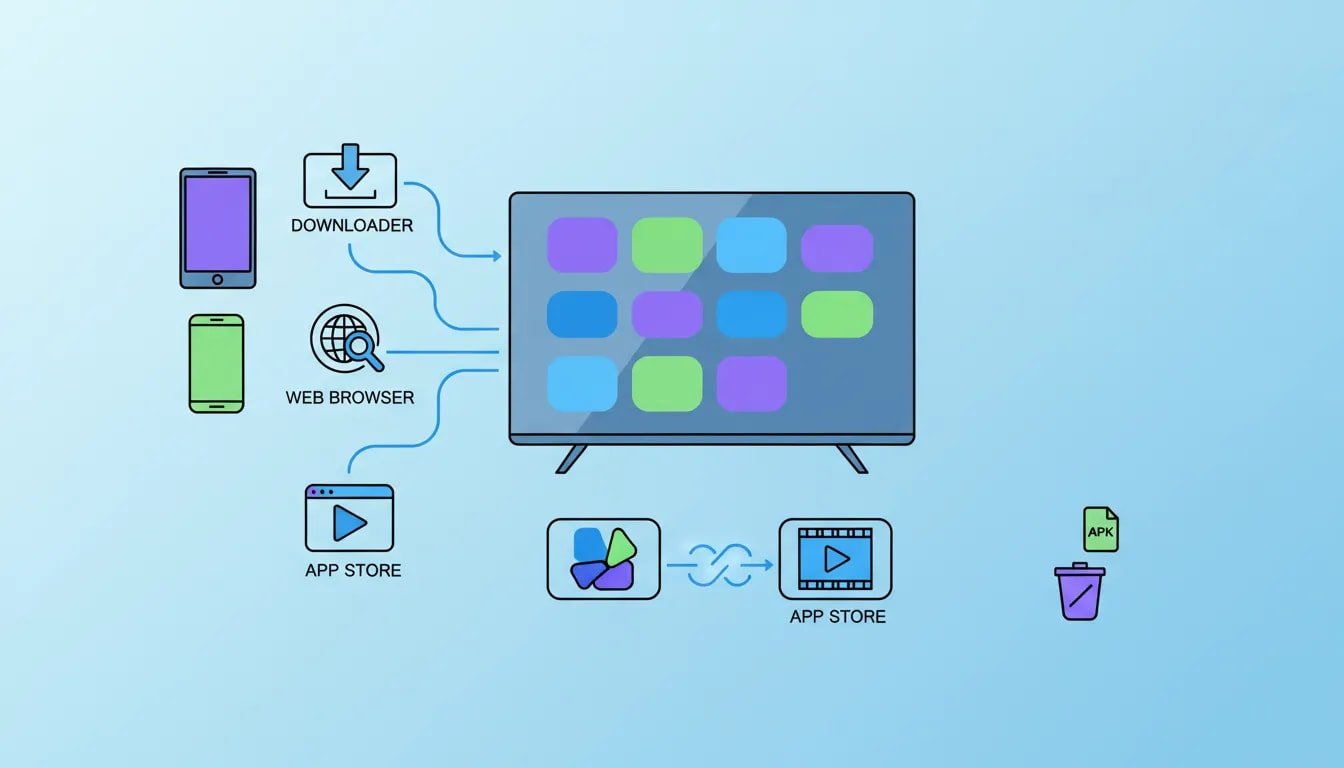
There are three ways to get it done:
- Through the Downloader app
- Through a web browser on the TV
- Through the Google Play Store
I’ll walk through all three, plus the extra steps that actually matter, like deleting leftover APK files, opening sideloaded apps, and copying the files to a USB flash drive as a backup.
Table of Contents
- 📥 Method 1: Install Sun Plus TV with Downloader
- 🧭 How to Find Sideloaded Apps After Installation
- 🔐 First Launch Setup for Sun Plus TV
- 🌐 Method 2: Install Sun Plus TV from the TV Browser
- 📂 How to Access the Downloaded Files in File Manager
- 💾 How to Copy the App and Player to a USB Flash Drive
- 🛒 Method 3: Install Sun Plus TV from Google Play Store
- ⚙️ Important Notes Before You Finish
- ❓FAQ
📥 Method 1: Install Sun Plus TV with Downloader
If Downloader is already installed on the TV, this is usually the fastest method.
Start by pressing the Home button on the remote and open the Downloader app.
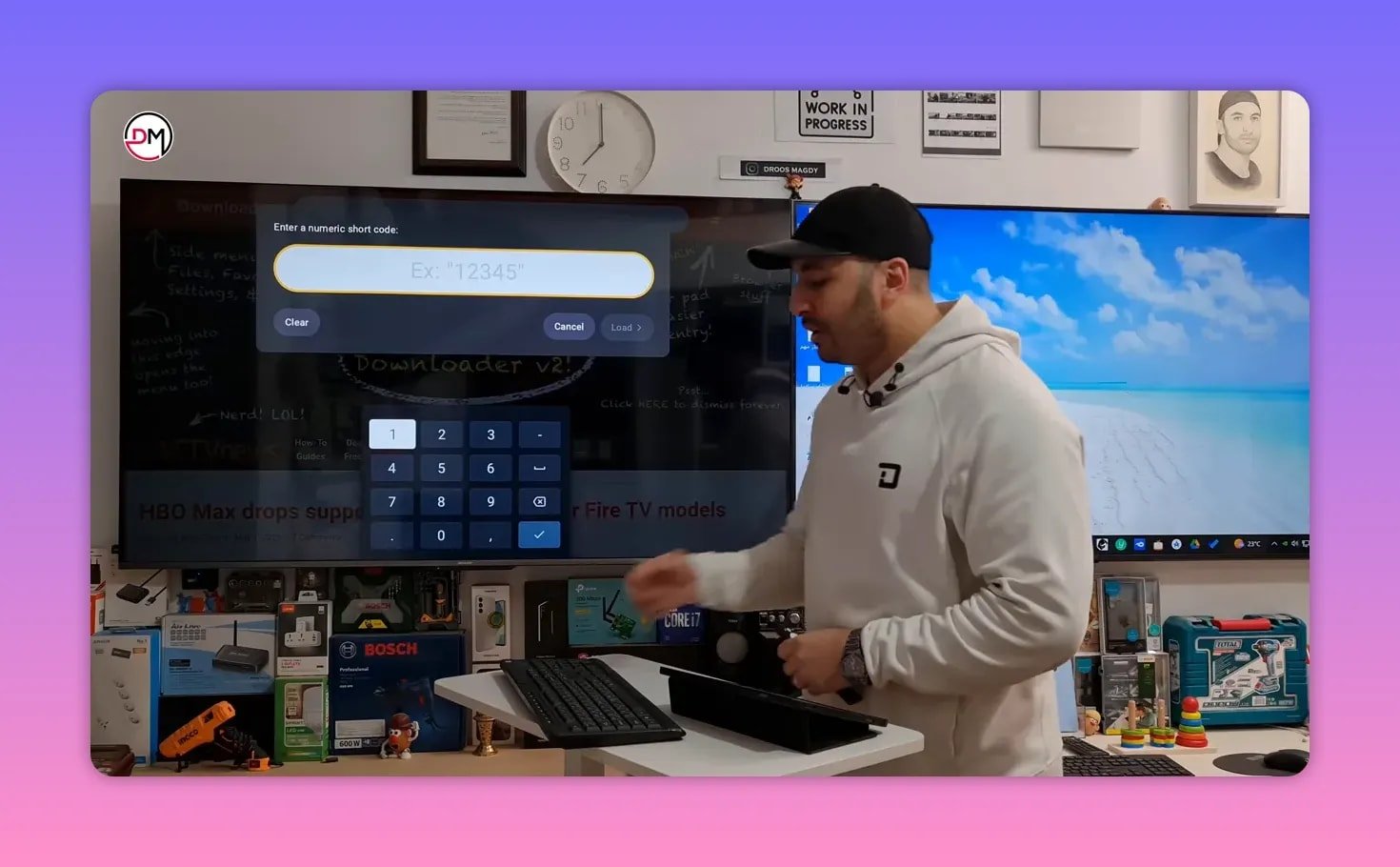
Inside Downloader, go to the search field at the top and select the code entry option. Then enter the Sun Plus TV app code:
- 74606
After entering the code, press Enter or the checkmark on the keyboard. Wait a few seconds. The app will connect automatically and begin the process.
If Sun Plus TV is already installed, the TV may ask whether you want to update the app. If it is the first installation, it will ask if you want to install the app. In both cases, choose Install.
The app size is around 32 MB, so the download should not take long unless the internet connection is slow.
Once installation finishes, choose Done, not Open.
Then do one very important thing: delete the installation file.
That APK file stays in internal storage if you leave it there, and over time it can waste memory and contribute to lag or slow performance on the TV. So press Delete, then Delete again to confirm.
Install the required player with Downloader
Now go back into Downloader and enter the code for the video player used by Sun Plus TV:
- 4195616
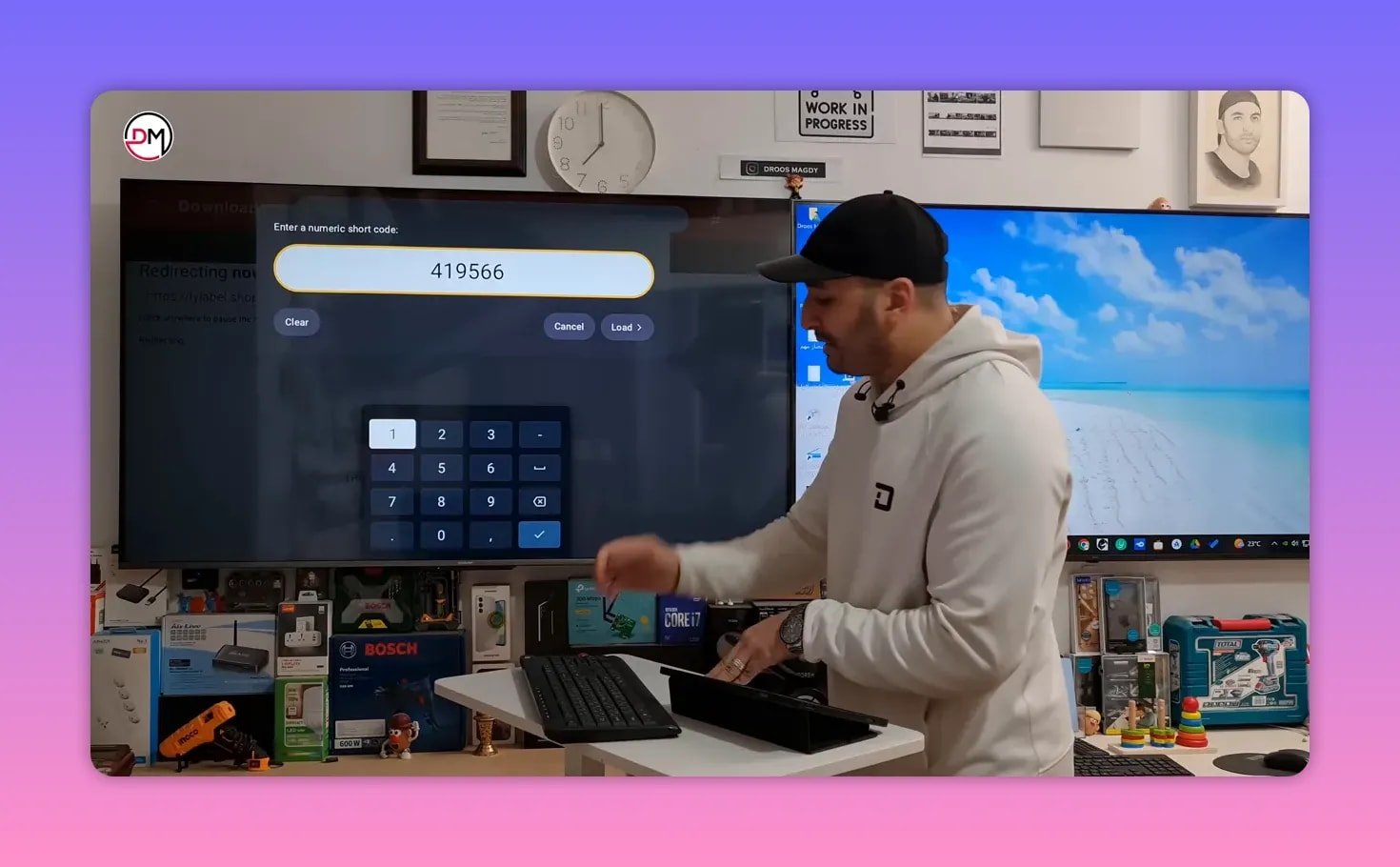
Press Enter and follow the same exact steps.
- Wait for the redirect
- Let the file download
- Choose Install
- Press Done
- Delete the APK file afterward
The player file is about 30 MB. Once that is done, both required components are on the TV.
If you often install streaming tools this way, you may also like this guide on installing a streaming app on Smart TV with Downloader, since the overall logic is very similar.
🧭 How to Find Sideloaded Apps After Installation
One thing confuses a lot of people: after installing the app successfully, it may not appear on the main home screen.
That does not mean the installation failed.
It simply means the TV needs a launcher that can display sideloaded apps. For that, use something like:
- Side Load Launcher
- Applications app
These tools show all apps installed on the TV, including the ones that do not appear normally on the home page.
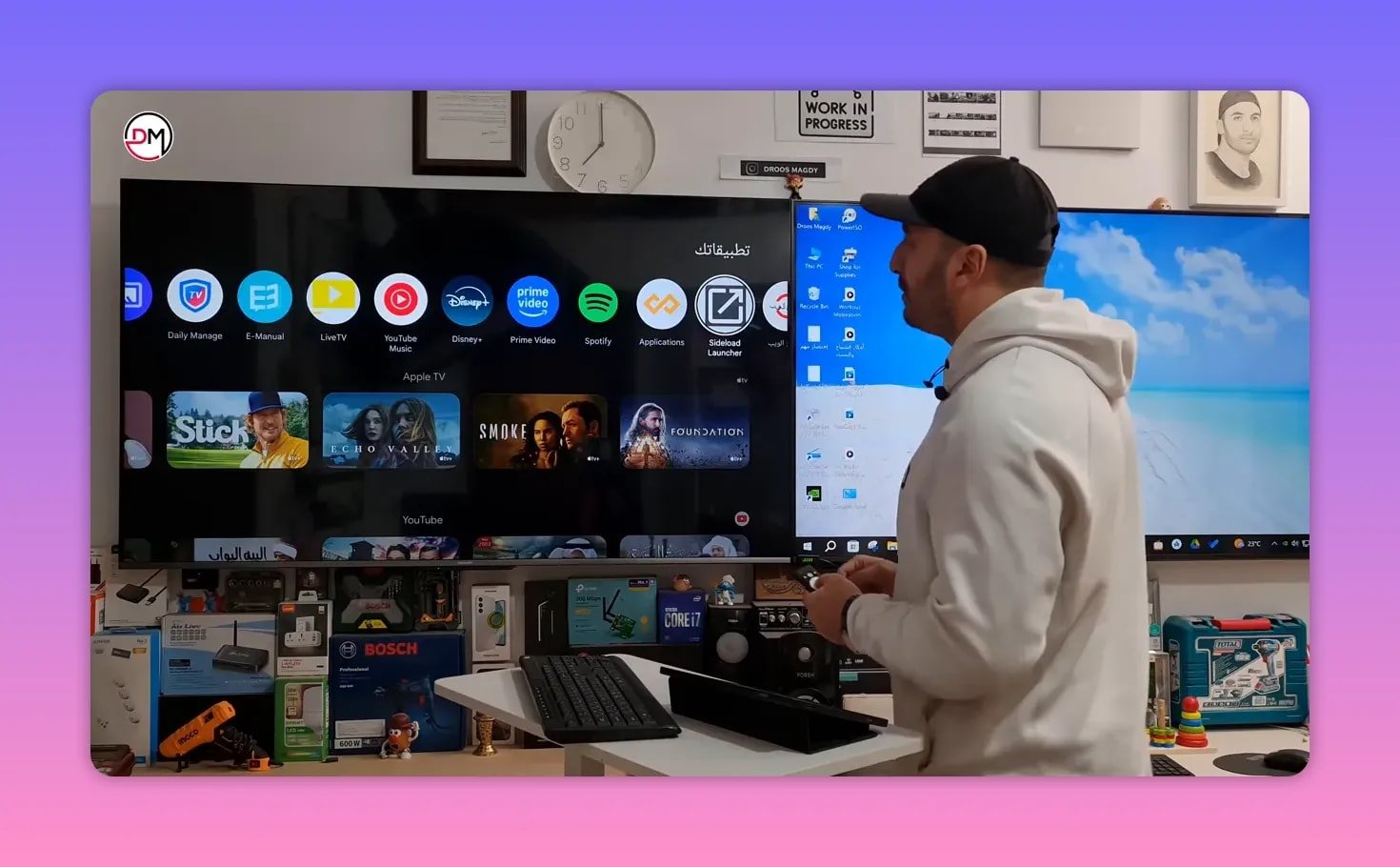
Open the launcher, and you should see both:
- Sun Plus TV
- its player
🔐 First Launch Setup for Sun Plus TV
When you open Sun Plus TV for the first time, you’ll get three fields or choices on the screen. In the first box, enter the activation word exactly as shown in the app source.
The key detail here is:
- the letter M must be uppercase
- the letter L must be uppercase
- do not add commas or separators
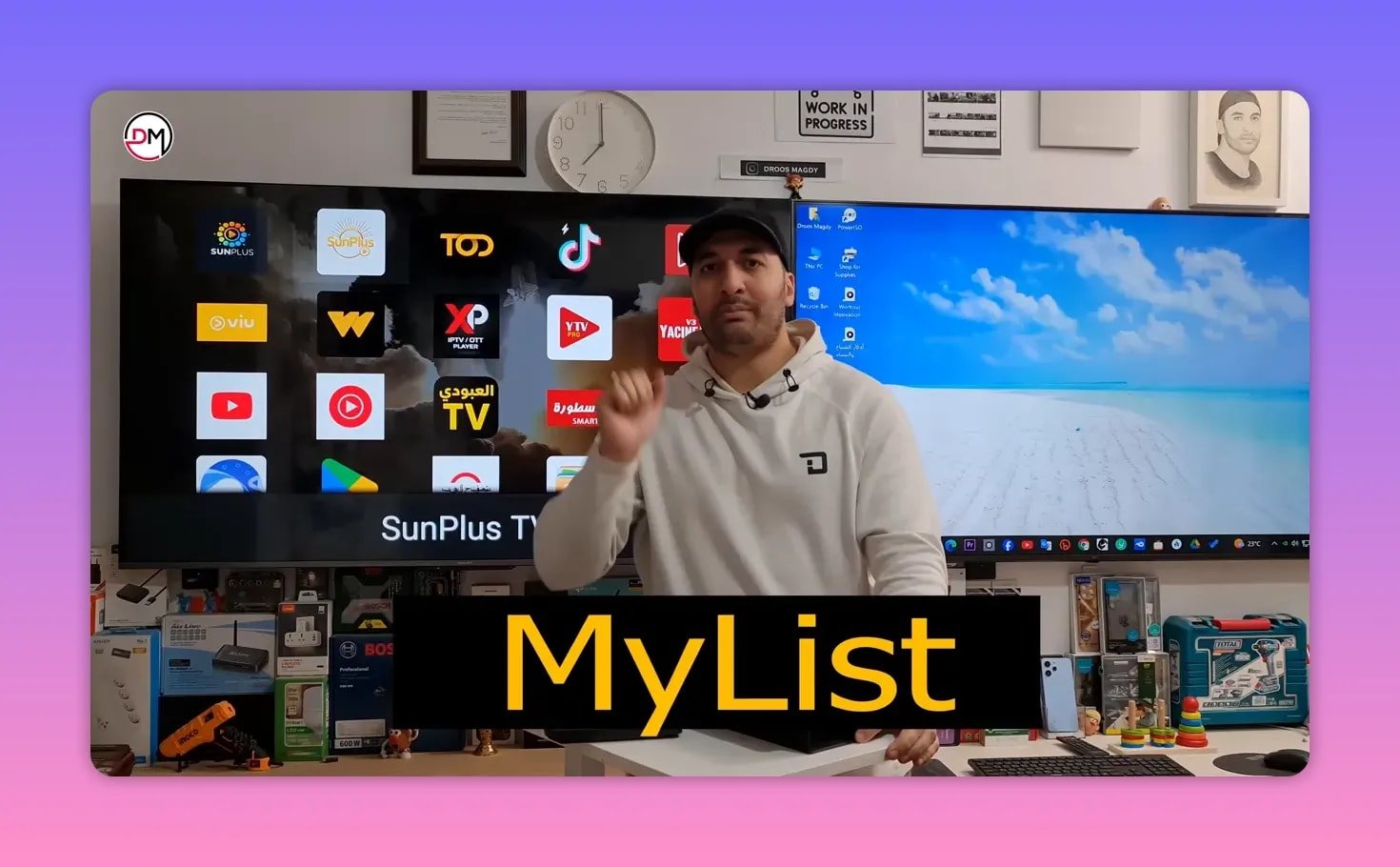
After entering it correctly, the app should start working automatically.
🌐 Method 2: Install Sun Plus TV from the TV Browser
If Downloader is not available, or if you prefer using the browser directly, this method works too.
Press the Home button and open any browser installed on the TV, such as the built-in web browser.
In the address bar, type the following format:
aftv.news/CODEFor the Sun Plus TV app, enter:
aftv.news/74606Then press Enter and wait a few seconds for the page to load. When the download page appears, select Download.
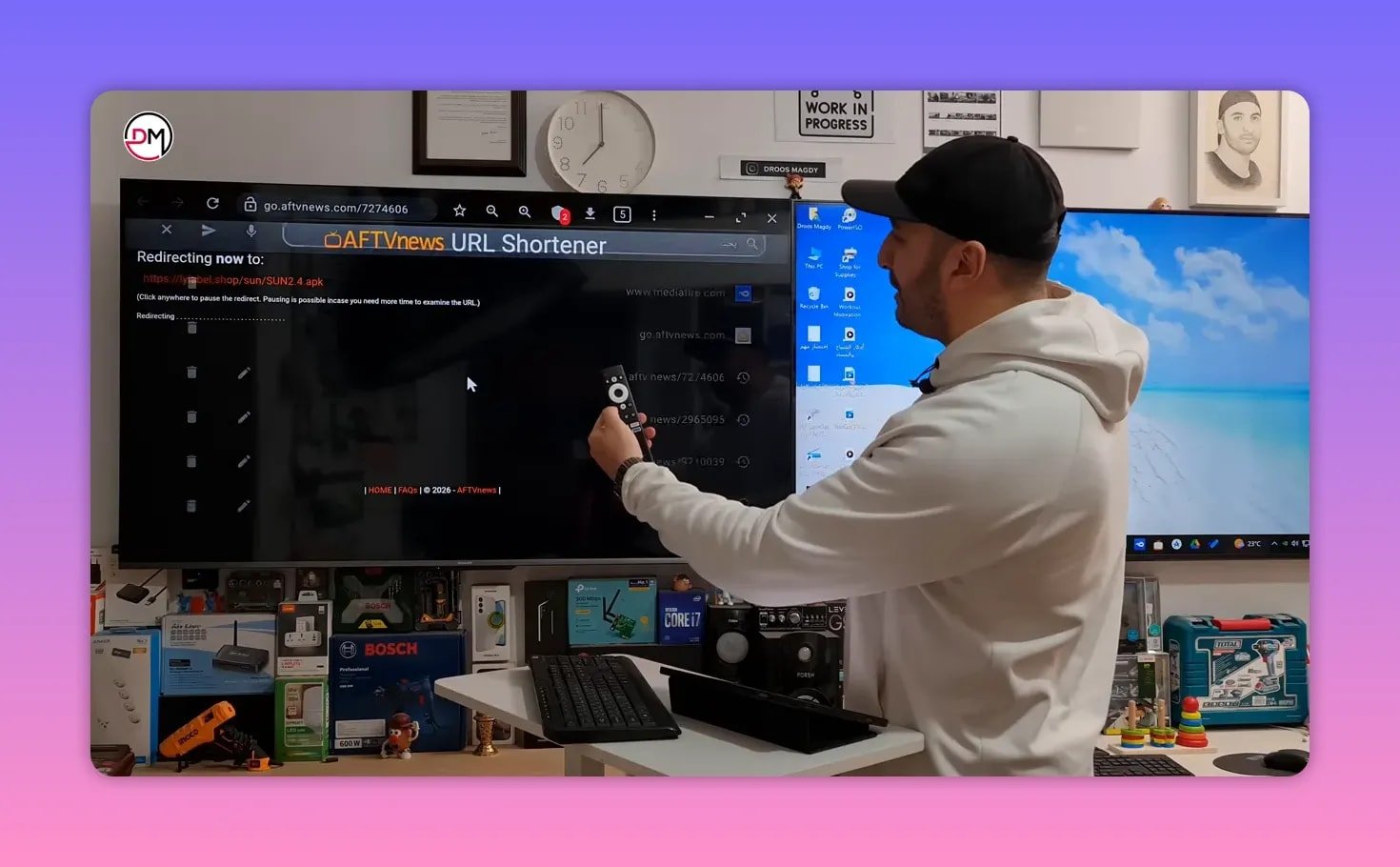
Wait until it reaches 100%.
After that, go back and repeat the same process for the player using:
aftv.news/4195616Again, choose Download and let the file finish.
This browser method is handy because the URL pattern stays the same for many Android TV app installations. Only the code at the end changes.
For broader Android TV app resources, this collection of Android TV installation guides can be useful if you work with similar sideloaded apps regularly.
📂 How to Access the Downloaded Files in File Manager
After downloading through the browser, the files usually land in the Downloads folder, so you need a File Manager app on the TV.
Open File Manager, then go to Downloads.
There you should find:
- the Sun Plus TV APK
- the player APK
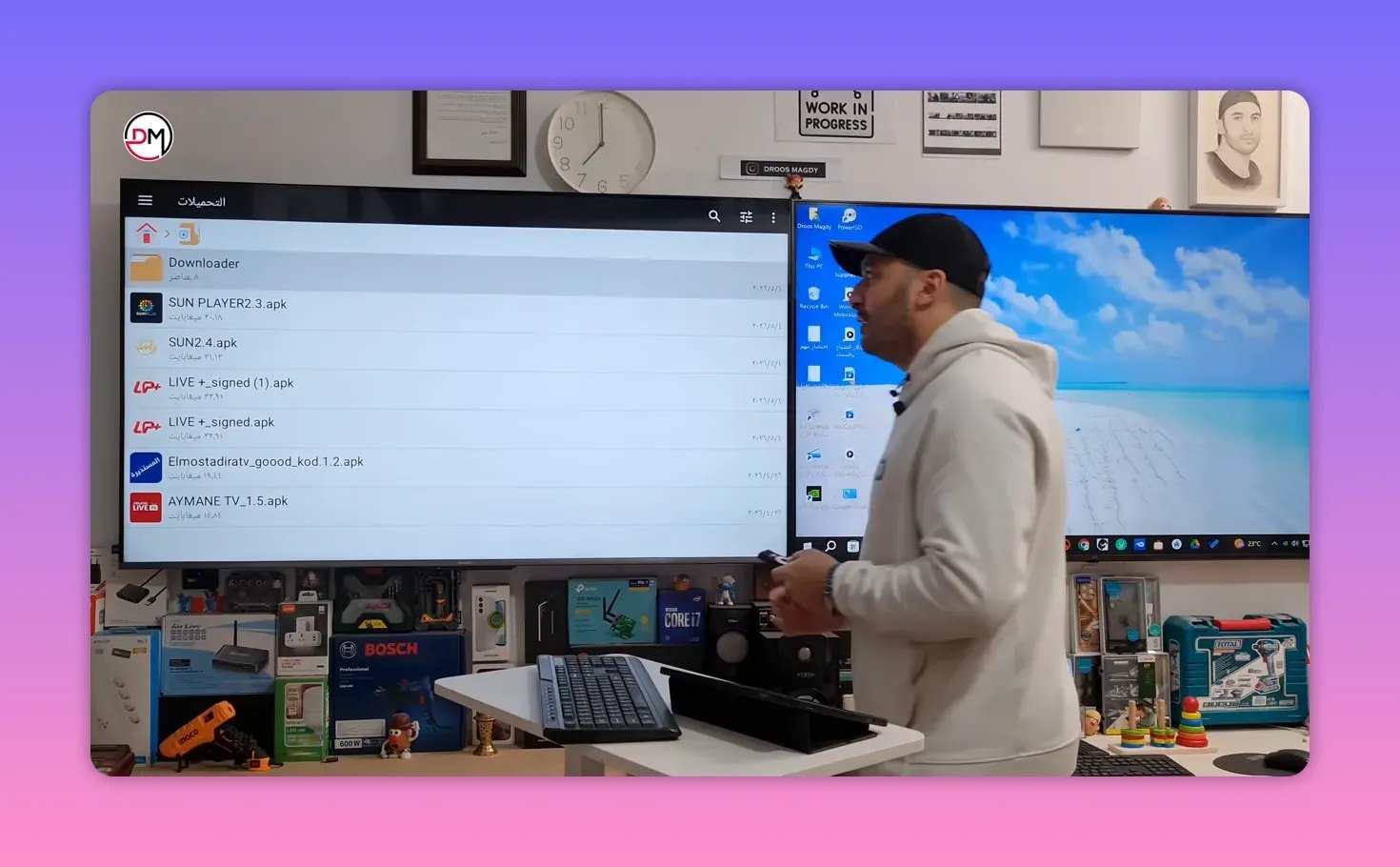
From there, you can tap either file to install it.
If the install dialog appears but the remote does not respond properly on that screen, use a USB mouse or external mouse. That can help with selecting:
- Install
- Update
- Cancel
This is a common workaround on some smart TV models and Android TV boxes.
💾 How to Copy the App and Player to a USB Flash Drive
If you want a backup copy of the app and player, you can move them from the TV to a USB flash drive.
This is especially useful if:
- you want to reinstall later without re-downloading
- you plan to use the same APKs on another TV
- you want to keep a local backup
Here’s how to do it from File Manager:
- Open Downloads
- Highlight the Sun Plus TV APK
- Press and hold, then choose Copy
- Go back and open the USB drive
- Choose any folder
- Select Paste
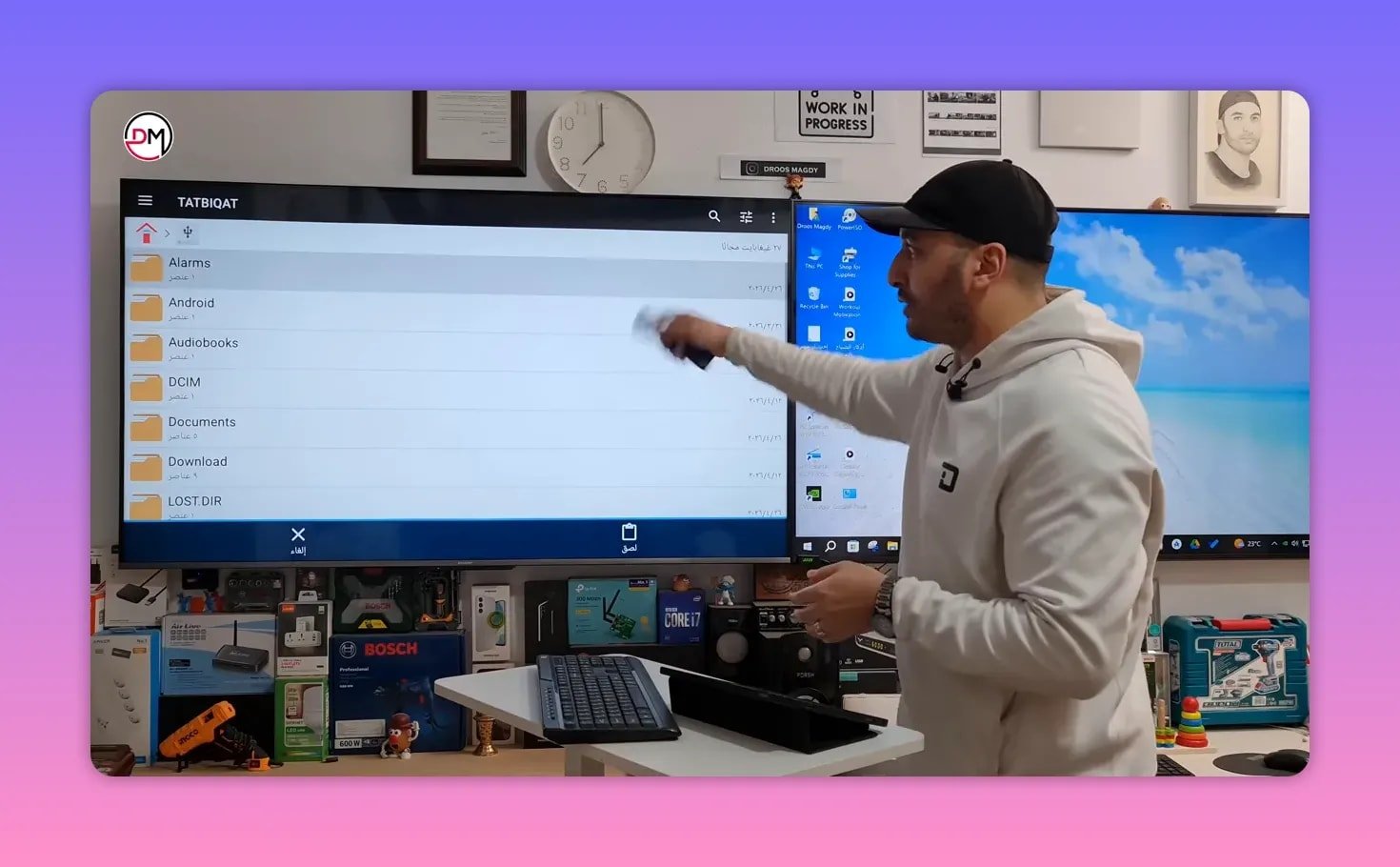
Wait until the transfer completes. Then repeat the same steps for the player APK.
Once both files are copied, you have a full backup on the flash drive.
🛒 Method 3: Install Sun Plus TV from Google Play Store
If the app and player are available in the Google Play Store on your device, this is the easiest route.
Open the Play Store and search for:
- Sun Plus for the app
- M Plus Player for the video player
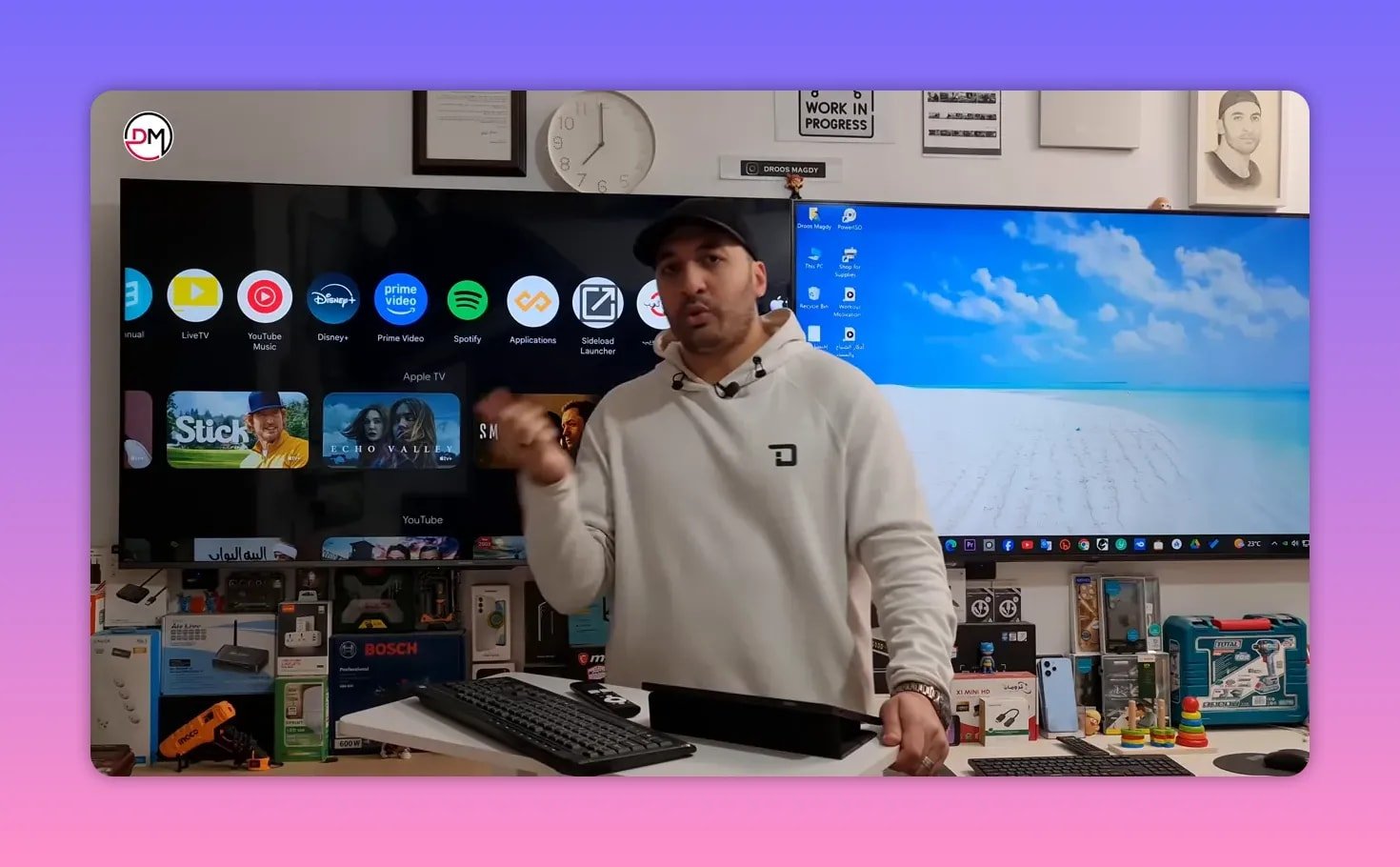
Install both.
After that, open the app and in the first field enter the same activation word exactly as required, with uppercase M and uppercase L, and without separators. Once entered correctly, everything should work automatically.
If you install smart TV entertainment apps often, you may also want to browse this Smart TV apps section for similar setup ideas and installation patterns.
⚙️ Important Notes Before You Finish
- Install both parts. Sun Plus TV alone is not enough. You also need the video player.
- Delete APK files after installation when using Downloader to save storage space.
- Use a sideload launcher if the app does not appear on the main TV screen.
- Keep File Manager installed because it helps with downloads, backups, and manual installations.
- Use an external mouse if needed when the install screen does not respond to the remote.
If you are working on Android TV or Google TV hardware and want official device-level support for app behavior, storage, and installation basics, the Android TV Help Center is a useful reference.
❓FAQ
Do I need to install both Sun Plus TV and the player?
Yes. The setup requires Sun Plus TV and its video player. If only one is installed, the app may not work properly.
What is the Downloader code for Sun Plus TV?
The code used for the app is 74606.
What is the Downloader code for the player?
The code for the player is 4195616.
Why doesn’t the app show up on my TV home screen after installation?
That usually happens with sideloaded apps. Install a launcher such as Side Load Launcher or another app-list tool to display all installed apps.
Can I install the app from the browser instead of Downloader?
Yes. Use the browser and type aftv.news/74606 for the app and aftv.news/4195616 for the player.
Where do the files go when I download them from the browser?
They usually go to the Downloads folder, which you can open through a File Manager app.
Can I copy the app to a USB flash drive?
Yes. Open File Manager, go to Downloads, copy the APK, then paste it into a folder on the flash drive. Repeat the same steps for the player.
What should I do if the remote does not work on the install screen?
Use an external mouse or USB mouse. Some smart TVs do not respond well to the remote on installation dialogs.
Why is it important to delete the APK files after installation?
Deleting the leftover APK files helps free internal storage and may reduce lag or slowdowns on the TV.
That’s the complete setup. Whether you install Sun Plus TV through Downloader, the browser, or Google Play, the real trick is following the correct order, keeping the player installed, and using the right tools to access sideloaded apps and downloaded files.